Listings & Catalog Workflows
Written By Sam from Jinnify
Last updated 23 days ago
Listings & Catalog Workflows
Summary: How listing work works in Jinnify today: Create workflows (New listing, Optimize, Bulk optimize), Your listings catalog, tracking rival ASINs for listing changes, quality score and 75-character titles, publish vs Inbox approve, credits, and what Amazon still controls.
Where listing work lives
Always check the store selected in the top bar. Catalog, Inbox, competitors, and publish targets that store.
Credits
AI listing work spends Jinnify credits. Spend is token-metered from real model usage. Listing workflows (Optimize, New listing, Bulk optimize) apply a workflow multiplier on top of raw usage, so they cost more than a short chat turn.
Typical debits (exact amounts vary with how long the run is):
At zero credits, New listing, Optimize, and Bulk optimize entry are blocked until you add credits (connect store for trial +5,000, upgrade, or buy a pack). Bulk runs debit per listing as they process; if your balance runs out mid-batch, the rest are skipped and you are notified. The balance in the top bar / Settings is authoritative.
Store connection rules
Jinnify encourages connecting a store but does not lock drafting behind connection. Publish and live data do.
Quality bar (all content workflows)
Quality score out of 10 with pass/fail criteria (title length, bullets count/length, and related checks). Aim for 10/10 before publish.
Titles: Amazon enforces about 75 characters (including spaces). Over-limit titles risk suppression or truncation. Prefer brand, product type, and key attributes; avoid filler and banned promotional language.
Item highlights: short phrases for overflow detail when the title stays within 75 characters.
Bullets: typically 5–7 benefit-led lines within Amazon length norms.
Description: full paragraphs; no invented claims, medical claims, or competitor brands.
Treat AI output as a draft. You remain responsible for accuracy and compliance.
Optimize one listing
Best first workflow after connect.
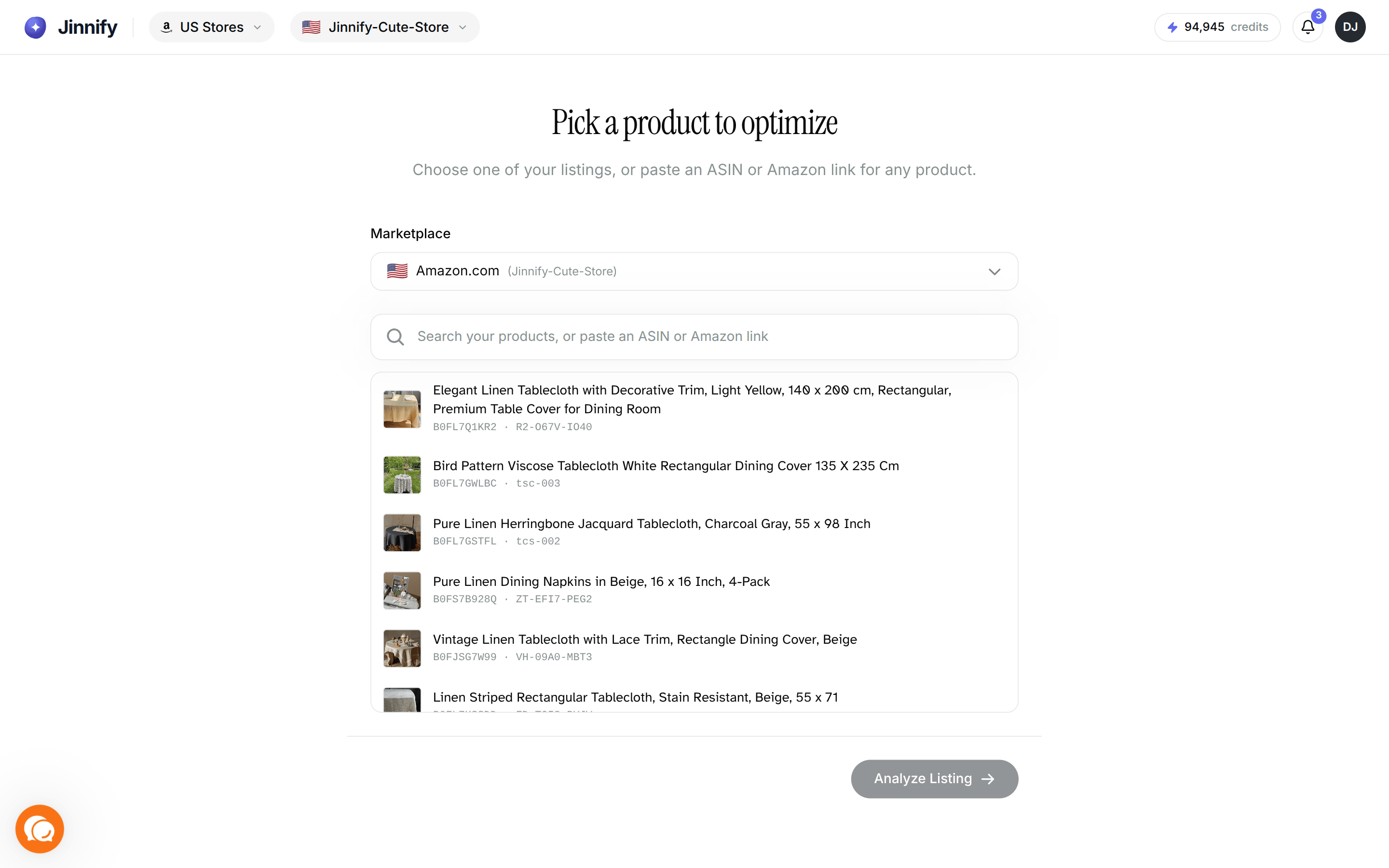
Open Create → Optimize (
/workflows/optimization),
or open Your listings, find the product, and start Optimize from the row when available.Enter or confirm ASIN / listing for the selected marketplace store.
Review analysis and choose which fields to improve (title, bullets, description, keywords, item highlights as offered).
Edit the suggestions. Re-check the quality score.
When ready:
Publish to Amazon if a real store is connected and required details (for example SKU / price where asked) are complete, or
Copy content out if you are only drafting.
Confirm in Seller Central after Amazon has time to process.
Start with one known ASIN until you trust how Amazon accepts your category.
New listing
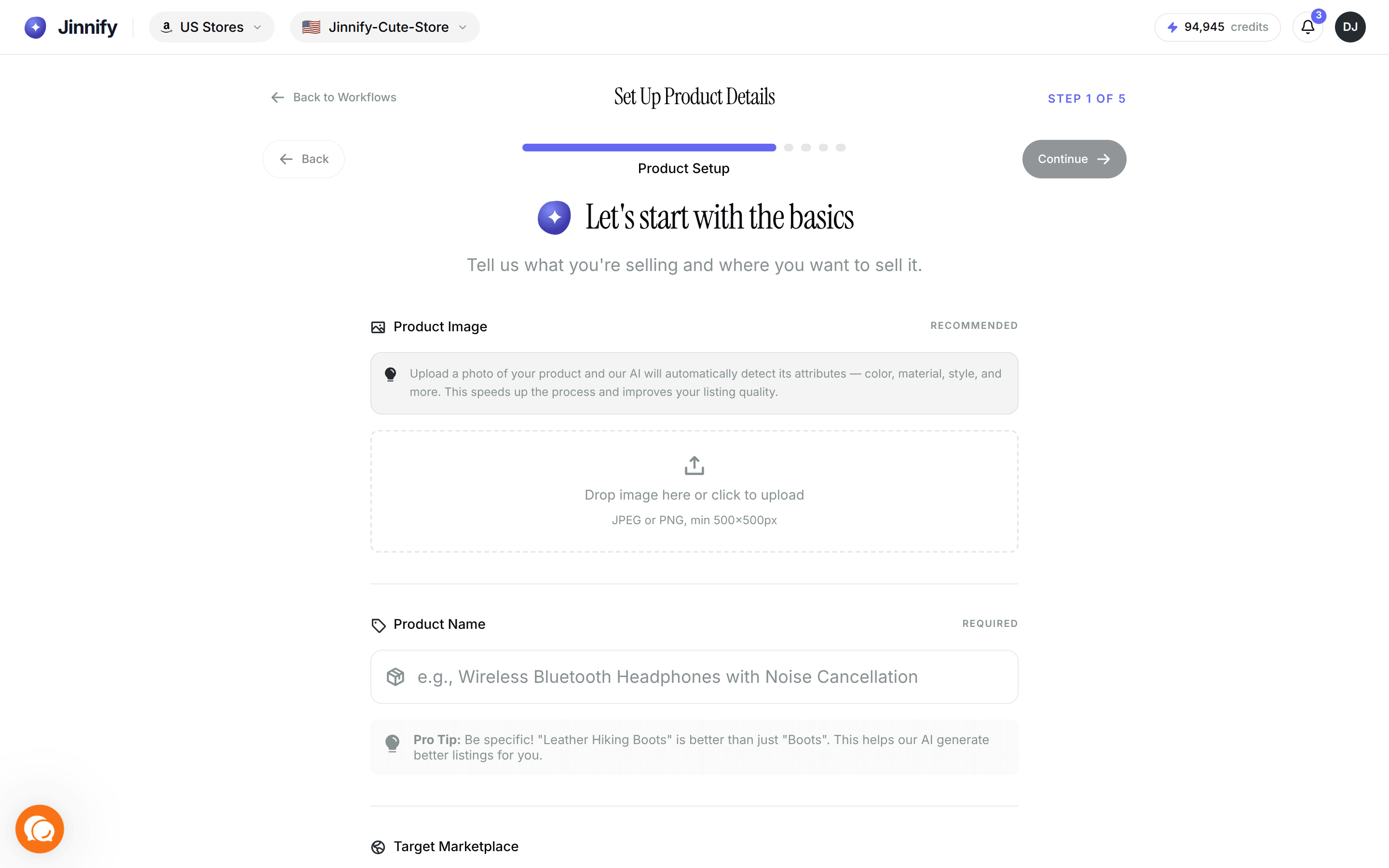
Open Create → New listing (
/workflows/new-listing).Work through generation and edit steps (content, attributes your flow collects).
Use the quality score and title limit callouts.
On Ready to publish, complete required details.
Publish only with a real connected store. Without one, you can still prepare the draft and connect later.
Amazon still requires valid product identity, category, and offer data. Incomplete structural fields fail at Amazon even when copy scores well.
Bulk optimize
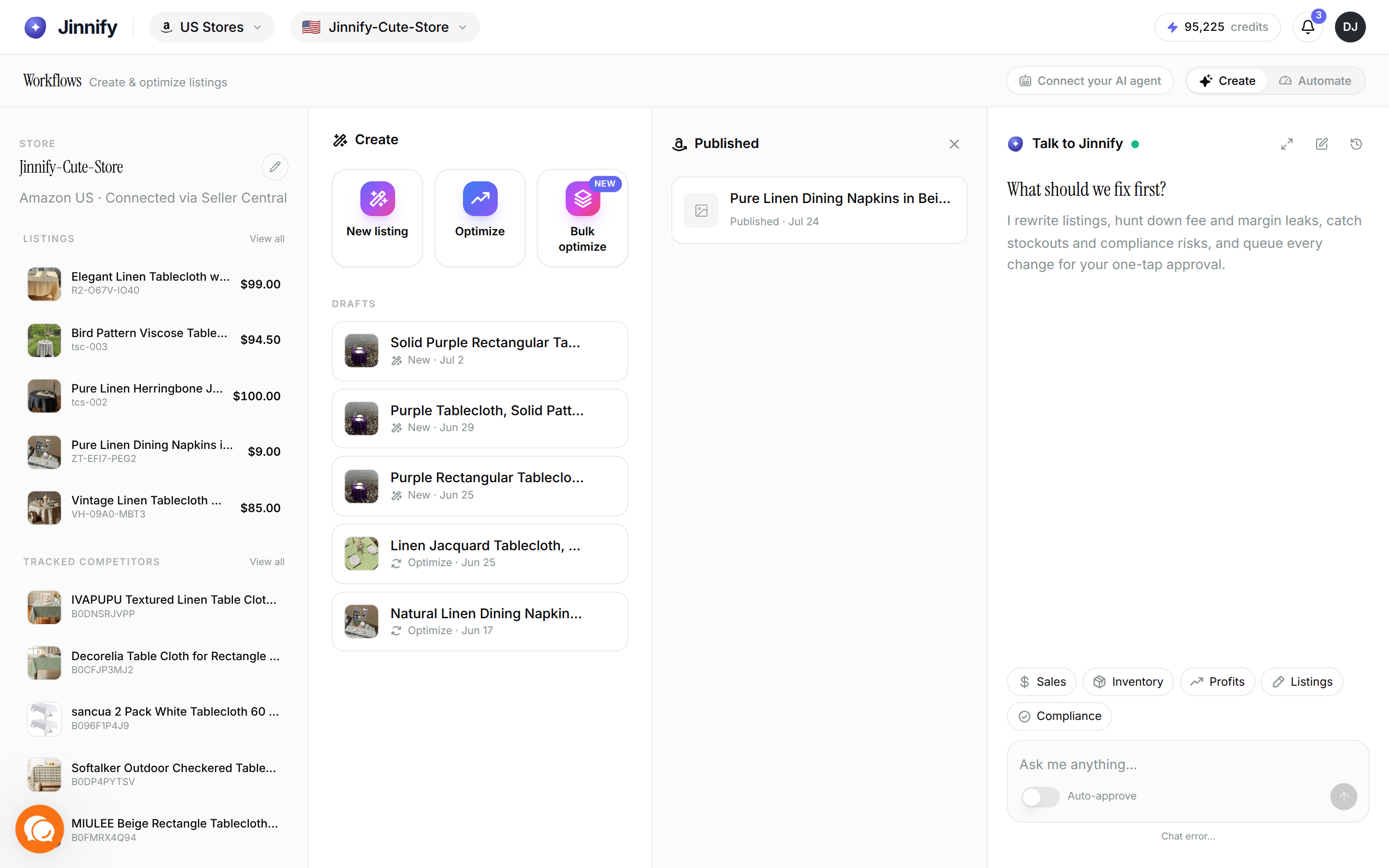
Open Create → Bulk optimize (
/workflows/bulk-optimization). Requires a real (non-sandbox) store.Select products from your catalog.
Choose fields to optimize and tone / options the wizard offers.
Confirm you have enough credits (about 80 per listing) and start the batch.
Approval mode:
Inbox: results become recommendations → review in Automate → Inbox.
Auto: approved items can stream toward Amazon; watch Published / Activity and Seller Central.
Active batches show progress under Create drafts; finished inbox batches deep-link toward Inbox or batch detail when there are failures.
Best practice: small first batch, same category if possible, review quality before scaling.
Your listings (catalog)
On Your listings you can:
Search by title, SKU, or ASIN
Filter by status (default often Active), fulfillment channel, and quality filters such as Titles over 75 characters
Sort by title, price, or last updated
Select multiple rows and Optimize N titles to generate compliant titles and queue proposals for Inbox approval (does not write Amazon until approved)
Open a single listing into the full Optimize flow when offered
Thumbnail and status dots help scan the catalog; the selected top-bar store scopes the list.
Tracked competitors
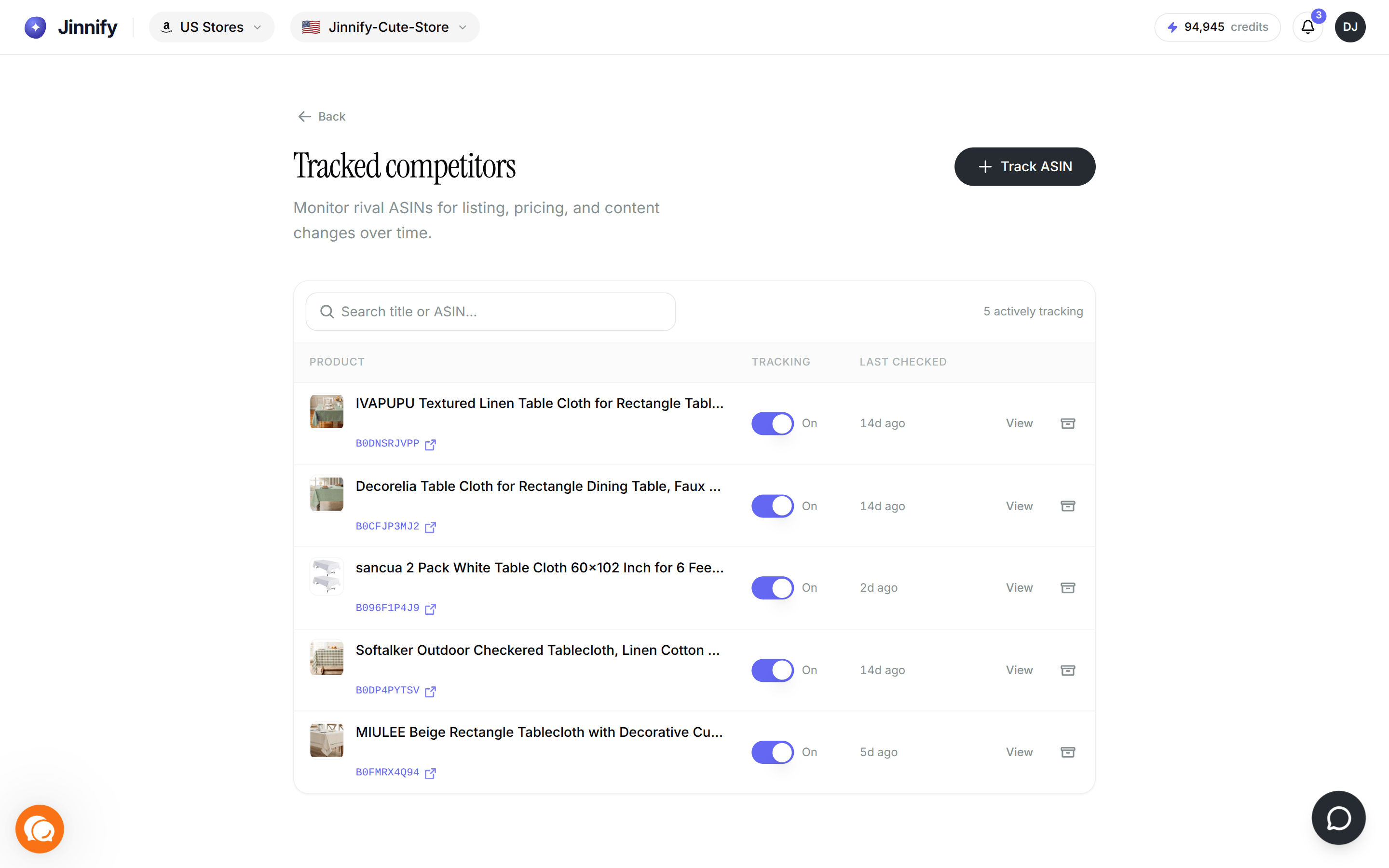
Use this to monitor other sellers’ ASINs (rivals on Amazon), not your own catalog. Jinnify fetches the current listing and watches for changes over time.
Open the list
Select the correct store in the top bar (must be a real Amazon connection, not sandbox).
On Automate, open the store rail section Tracked competitors, then View all,
or go to/competitors.
Page title: Tracked competitors. Subcopy: Monitor rival ASINs for listing, pricing, and content changes over time.
Track an ASIN
Click Track ASIN (or Track your first ASIN when the list is empty).
Enter a valid Amazon ASIN (format like
B0………).Confirm. Jinnify pulls the current listing and starts watching for changes to title, bullets, images, brand, and price.
You can search the list by title or ASIN. The header shows how many are actively tracking vs paused.
Pause, resume, or archive
On the list or on a competitor’s detail page:
Tracking switch — pause or resume checks for that ASIN (pause does not delete history).
Archive — remove the ASIN from your tracked set (confirm when asked).
Change history and listing view
Open a row to go to /competitors/{ASIN}. Switch between:
Changes — history of detected diffs (what moved between checks)
Listing — current catalog-style view of that ASIN
Last checked shows how recently Jinnify refreshed the rival listing.
Inbox proposals
Chat or an external agent (BYOA) can propose tracking a competitor. That lands in Automate → Inbox. Approve adds it to Tracked competitors; Dismiss skips it. Adding from Track ASIN in the UI tracks immediately (no Inbox step).
Tracked competitors are scoped to the selected store. Switch stores in the top bar to see another marketplace’s watch list.
How changes reach Amazon
A. Direct workflow publish
Used by New listing and Optimize when you click publish and pass the publish gate. Jinnify submits the listing update; Amazon validates and may delay or normalize fields.
B. Recommendation → Inbox → Approve
Used by:
Bulk optimize in inbox mode
In-app chat proposals
Title fixes from Your listings
External agents (BYOA) proposing patches, new listings, or track competitor ASINs
Creating a proposal does not publish. In Automate → Inbox you can:
Approve — apply toward Amazon
Dismiss — skip it (no Amazon change)
Snooze 24h — hide it from the open queue for about a day, then it returns for review. Use the row menu (⋯) or select several items and Snooze 24h in the bulk bar. Snooze does not approve or dismiss.
History of applied or dismissed work lives under Activity.
C. What Amazon still controls
Final validation and catalog conflicts
Propagation timing
Parent/child variation rules
Marketplace-specific attribute requirements
Whether another contributor “owns” a field
A green finish in Jinnify is not a guarantee that Seller Central already shows the same text.
Field selection vs “rewrite everything”
Prefer changing only the fields you need (title only, or title + bullets). Broader rewrites are fine when the listing is weak, but they carry more Amazon-side risk. The Optimize and Bulk UIs use field selection, not a separate product mode named “partial update” / “full update.”
Variations
Before wide edits on a parent/child family:
Confirm whether attributes belong on parent or child
Spot-check size, color, pack, or style consistency
Test one child before bulk
When changes do not show on Amazon
Wait for Amazon processing.
Compare field-by-field in Seller Central.
Check Inbox for still-pending recommendations.
Retry a smaller set of fields.
Fix required or invalid attributes before more copy work.
Contact support if the same field fails repeatedly with evidence.
Rollback
Jinnify does not promise a full version-control restore for every listing. Practical approach:
Keep your own copy of critical titles/bullets before large changes
Re-run Optimize or paste prior content and publish again
Use Activity / prior recommendations when they still hold the old values
Always confirm the live Amazon page after a corrective publish.
What success looks like
Correct store selected
Target ASIN/SKU found
Quality score reviewed
You know whether the change is still a draft, waiting in Inbox, or submitted
Rival ASINs you care about appear under Tracked competitors when you use that feature
Seller Central matches what you expect after propagation (or the mismatch is explained)