Amazon Connection & Authorization
Written By Sam from Jinnify
Last updated 19 days ago
Amazon Connection & Authorization
Summary: How to authorize Jinnify with Amazon Seller Central, confirm the connection, reconnect when access expires, and fix common OAuth problems.
Before you begin
Sign in to the correct Amazon Seller Central account (especially if you manage clients)
Prefer an account owner or admin user who can authorize third-party apps
Know which marketplace you care about first (each marketplace is its own store row in Jinnify)
Recommended path: start from Jinnify
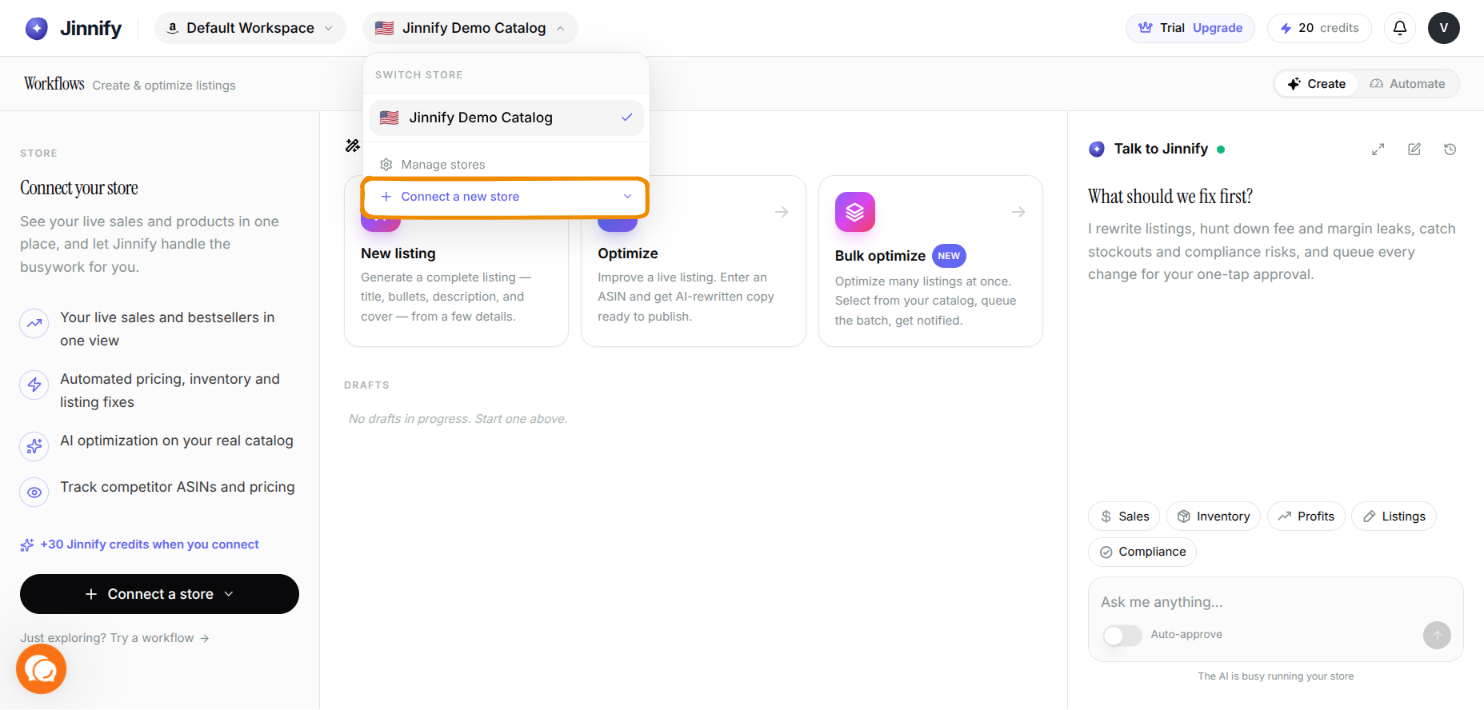
Most sellers should connect from the app (not only from the Appstore):
Sign in to app.jinnify.ai.
Open Your stores: top bar → workspace menu → Manage workspaces & connections,
or use Connect store from the store menu in the top bar.Choose Connect store → Amazon.
Read the short explainer (what happens next; +5,000 Jinnify credits when you connect).
Click Continue to Amazon.
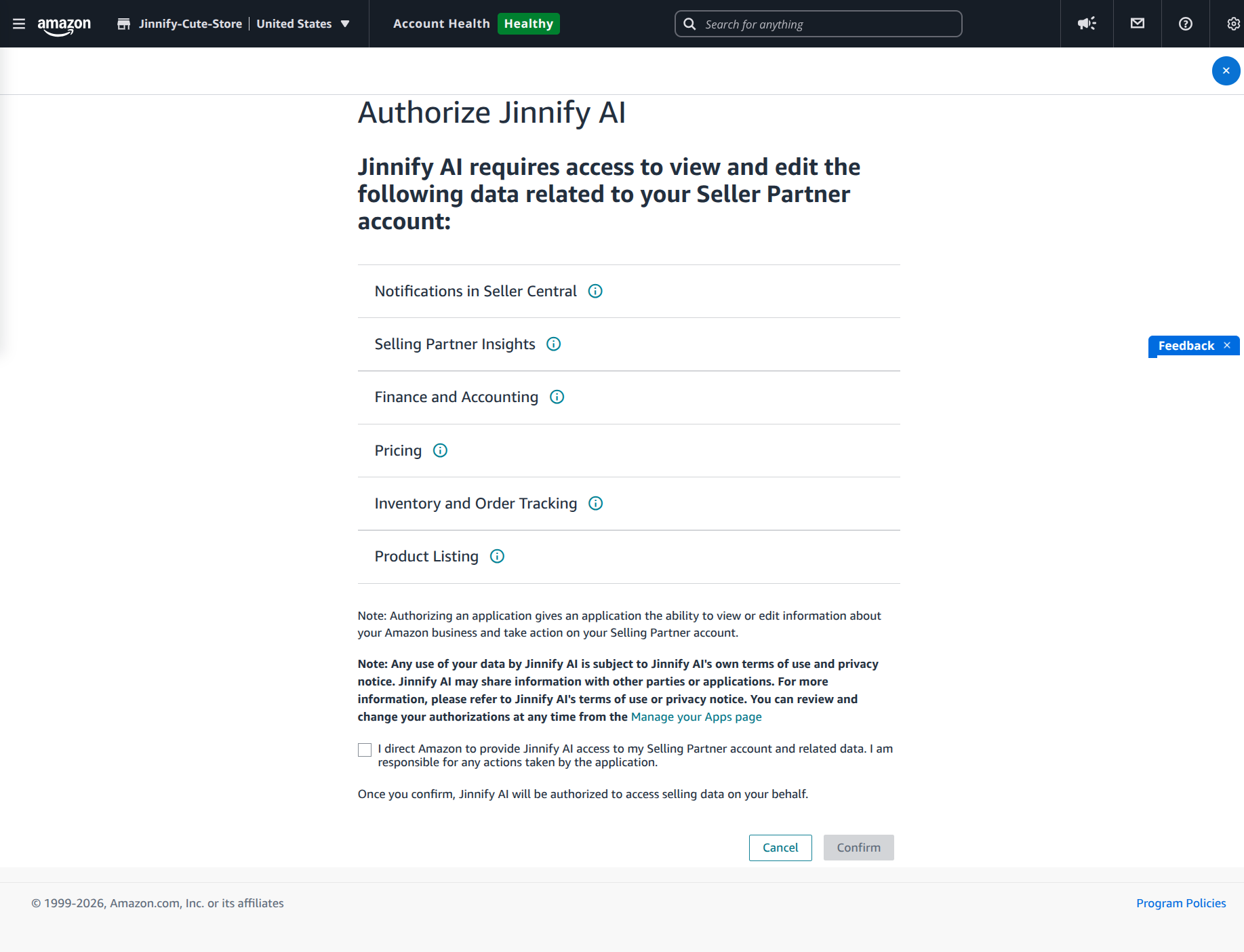
In Seller Central, review permissions and approve access for the intended seller account.
Return to Jinnify (automatic redirect when possible).
Confirm the store appears under Your stores / the top bar store list.
Amazon is available today. TikTok Shop, Walmart, and eBay show as Soon.
Optional path: Selling Partner Appstore
Sign in to Seller Central.
Open Apps and Services → Selling Partner Appstore.
Search for Jinnify, open the app page, and authorize.
Complete the flow and return to Jinnify to confirm the store is listed.
If you started on the Jinnify website, you may land on the app page or go straight into authorization.
Who should authorize
Use the main Seller Central owner or a trusted admin for the first connection when:
Your team uses multiple sub-users
You manage several marketplaces
Internal policy restricts who may approve third-party apps
The store belongs to a client
If a non-admin fails mid-flow, retry with a higher-permission user.
How to verify the connection is healthy
You are in good shape when:
The store appears under Your stores and in the top bar (if Active, not paused)
The expected marketplace label is visible (for example United States)
Status is not Reconnect needed, Onboarding Failed, or stuck on Awaiting first sync forever
Listings begin to appear on Your listings after sync
Authorization success does not mean data is instant. Initial sync can take additional time.
Statuses you may see
Reconnect when access expires (Reconnect needed)
Amazon access can expire or be revoked.
On Your stores (or the store menu), choose Connect store → Amazon.
Complete Seller Central approval again for the same intended account.
Confirm status recovers and sync progresses.
There is no separate reconnect button on Manage for the simple expired-token case. Use Connect store → Amazon again.
Reconnect after Onboarding Failed
Open Manage on the store.
Click Reconnect store.
Complete Amazon authorization again.
If it still fails, contact support with your account email, marketplace, seller ID, and screenshots.
Wrong seller account
Open Manage → Remove this store → confirm (or pause if you only want to hide it).
Sign out of the wrong Amazon session or switch Amazon user.
Run Connect store → Amazon again and approve the correct account.
Confirm the seller ID and marketplace on Manage.
Disconnect safely
Finish or cancel in-flight workflows that need that store.
Manage → Remove this store → Remove store.
Optionally revoke the app under Seller Central third-party apps.
Disconnecting stops future Jinnify sync and publish for that store. It does not undo listing changes already accepted by Amazon. The sandbox demo store cannot be removed by hand; Jinnify removes it after a real store connects.
Multi-marketplace sellers
If the same seller sells in more than one country, each marketplace appears as its own row. You can put them in different workspaces. Pause marketplaces you do not want in the top bar without disconnecting Amazon.
Common errors
Credits when you connect
Connecting a real Amazon store grants +5,000 Jinnify credits (in addition to the trial starter balance). The connect explainer in the app calls this out before Continue to Amazon.
What success looks like
Correct seller account and marketplace visible in Jinnify
Status past first sync without auth errors
You can open Your listings for that store
You can publish from Create when credits and required fields allow
When to contact support
Contact support if authorization loops, sync never starts while status looks active, the wrong seller keeps attaching, or onboarding fails after Reconnect store.
Include: Jinnify email, marketplace, seller ID, exact error text, screenshots of Amazon and Jinnify, approximate time (with timezone).